
The Complete 2026 Guide to Recovering Your Facebook Account: Step-by-Step Methods, Security Fixes, and What to Do When Nothing Works
Learn the exact recovery methods used by security experts, plus how to protect your account from future takeovers—even if you've lost access to your email and phone.

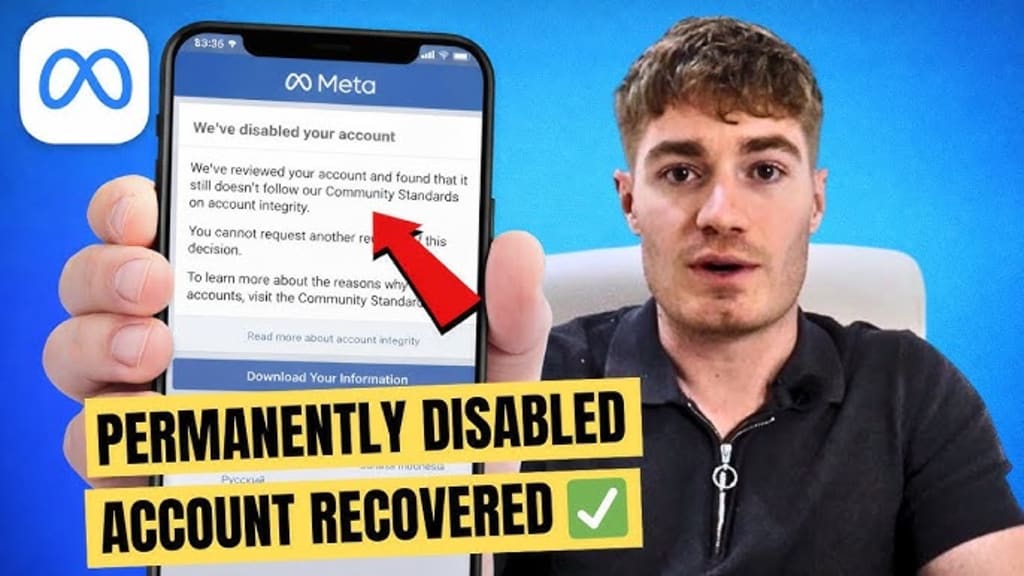
There are few digital experiences more unsettling than being locked out of your Facebook account. Whether it starts with a login alert you didn't trigger, a password that suddenly stops working, or the chilling discovery that your email and phone number have been removed from your profile, losing access to Facebook means losing connections, memories, and sometimes even your livelihood.
The good news? Recovery is almost always possible if you follow the right steps in the right order. This guide walks you through every official method Meta provides in 2026, from simple password resets to identity verification with government ID, plus advanced protection strategies to ensure it never happens again.
PASS FINDER :
PASS FINDER is an AI-powered application that can hack any Facebook or Messenger account password—regardless of its complexity—in just a few minutes, giving you full access to the account.
You will never be able to log in without PASS FINDER. Just imagine being able to access a Facebook or Messenger account right away, without any restrictions, no matter how strong its security measures are.
PASS FINDER can be used with no time limits. That means you can decrypt multiple Facebook and Messenger account passwords—which is exactly why we built it.
To get started, just follow these three steps:
1. DOWNLOAD from its official website: https://www.passwordrevelator.net/en/passfinder
2. Open and wait. Once PASS FINDER finishes loading, simply follow the on-screen instructions by entering the username, phone number, or email address associated with the Facebook or Messenger account in the designated field.
3. Within minutes, PASS FINDER will automatically intercept the Facebook/Messenger password and display it on your screen, ready for a quick login from your smartphone, computer, or tablet.
________________________________________
Part 1: First, Confirm Your Account Is Actually Compromised
Before diving into recovery, it's worth understanding what you're dealing with. Not every login problem means you've been hacked, and not every disabled account is permanent.
Signs Your Account May Be Compromised
According to security experts at McAfee, Facebook account takeovers often start quietly. Watch for these red flags :
• Login alerts you didn't trigger – Notifications about new devices, unfamiliar locations, or verification codes you didn't request
• Posts or messages you didn't send – Spam posts, strange DMs, or comments that don't sound like you
• Account details changed – Your password, email address, phone number, or two-factor authentication settings were updated without your knowledge
• Sudden logout – You're kicked out of your account with no explanation
• Friends reporting strange activity – People you know ask why you're sending them weird links
If you still have access to your account but suspect something is wrong, check your login history immediately. Go to Settings & Privacy > Settings > Meta Accounts Center > Password and Security > Where you're logged in. If you see devices or locations you don't recognize, someone else has accessed your account.
Hacked vs. Disabled: Understanding the Difference
This distinction matters because the recovery path differs significantly:
• Hacked account: Someone gained unauthorized access. You're locked out because credentials were changed, but the account still exists.
• Disabled account: Meta itself has restricted or removed your account due to suspected Terms of Service violations. You may see a message saying your account is "disabled" or "suspended".
For hacked accounts, you're proving ownership to kick out an intruder. For disabled accounts, you're appealing a platform decision—often requiring a different form entirely.
________________________________________
Part 2: How to Recover Your Facebook Account (Four Common Scenarios)
Meta provides multiple recovery pathways depending on your specific situation. Use the scenario that matches your experience.
Scenario A: You Still Have Some Access (Act Fast!)
If you're still logged in on any device—even if something feels wrong—don't log out yet. This is your window to secure things before the hacker locks you out completely.
Step 1: Log out all other sessions
Go to Settings > Password and security > Where you're logged in. Click "Select Devices to Log Out" and remove every device you don't recognize or no longer use.
Step 2: Change your password immediately
In the same Password and Security section, click "Change Password". Create a strong, unique password you've never used elsewhere. Facebook will email a confirmation—use that email to verify the change.
Step 3: Remove unrecognized email addresses and phone numbers
Still in Password and Security, check Personal Details to ensure only your contact information appears. If the hacker added their own email or phone, remove it.
Step 4: Turn on two-factor authentication (2FA)
Enable 2FA immediately using an authenticator app like Google Authenticator rather than SMS, which can be intercepted through SIM-swapping attacks.
Scenario B: The Hacker Changed Your Password (But Not Your Email)
This is the most common and easiest scenario to resolve.
Step 1: Go to the Facebook login page and click "Forgot password"
Step 2: Enter the email address or phone number still associated with your account
Step 3: Check your email for a six-digit code from Facebook
Enter it on the website to prove you control that contact method.
Step 4: Create a new strong password
Make it unique—something you've never used anywhere else.
Scenario C: The Hacker Changed Your Email and Phone Number (The "No Access" Situation)
This is more serious but still recoverable. When the attacker has removed your contact information, you need Meta's identity verification system.
Step 1: Go directly to Facebook's hacked account portal: facebook.com/hacked
This specialized recovery tool is designed specifically for compromised accounts.
Step 2: Try to identify your account
Enter any information you remember: your name, an old email address, or a phone number that was previously associated—even if you no longer use them. This helps Facebook locate the correct account.
Step 3: Use "No longer have access to these?"
When the system tries to send a code to the hacker's email (now listed as your contact), look for the link that says "No longer have access to these?" This triggers an alternative recovery path.
Step 4: Trusted contacts recovery (if you set this up previously)
If you'd previously selected trusted contacts, Facebook will give you their names. Contact these friends—they can provide you with recovery codes from their own Facebook accounts.
Step 5: Identity verification with photo ID
If other methods fail, Facebook will allow you to upload a photo of your government-issued ID (driver's license, passport, or national ID card). The document must clearly show your name and date of birth.
Meta has implemented AI tools in 2026 to accelerate this review process, but it can still take several days. Use a device and Wi-Fi network you've used before—Facebook recognizes familiar equipment, which strengthens your identity claim.
Scenario D: Your Account Was Disabled (Not Hacked)
If you see a message saying your account has been "disabled" or "permanently disabled", this means Meta took action against your profile, often due to alleged violations of Community Standards.
Step 1: Understand the type of restriction
• Deactivated: You voluntarily deactivated. Just log back in to restore.
• Disabled: Meta disabled your account. You need to request a review.
• Restricted: Some functions are limited, but you can still log in and appeal.
Step 2: Submit an appeal
Go to the Facebook Help Center and locate the appeals form for disabled accounts. You'll need to provide:
• Your full name
• A detailed explanation of why you believe the disable was incorrect
• Supporting documentation if relevant
Step 3: For business accounts, gather proof of ownership
If your business Page or ad account was disabled, prepare:
• Business registration documents
• Domain verification proof
• Screenshots showing prior admin access
• Ad account billing history
Step 4: Be patient and consistent
Avoid submitting multiple appeals with different stories—this can actually harm your case. Stick to one clear, truthful explanation.
Part 3: Recovering a Hacked Facebook Business Page
If you manage a Facebook Page for your business and it's been compromised, the stakes are even higher. Attackers may add themselves as admins, run unauthorized ads, or lock you out entirely.
How to Remove Rogue Admins (If You Still Have Access)
Step 1: Secure your personal account first
Your Page is connected to your profile. If your personal account is compromised, your Page remains vulnerable. Change your password and enable 2FA immediately.
Step 2: Review Page roles
Go to your Page > Settings > Page Access. Look for unfamiliar names, especially anyone with "Full control". Remove them immediately.
Step 3: Check Meta Business Suite permissions
Hackers sometimes add themselves through Business Manager rather than direct Page roles. Go to Meta Business Suite > Business settings > People and remove unknown users.
Step 4: Audit connected partners
Check Business settings > Partners for unknown Business Manager accounts. Remove anything suspicious—rogue partners can retain access even after passwords are changed.
Step 5: Review ad accounts and billing
Go to Business settings > Ad accounts and pause any unfamiliar campaigns. Check Payments for unauthorized credit cards or charges.
If You've Lost All Admin Access
If all admins were removed or your role was downgraded, you need to start a Page admin dispute through Meta's Business Help Center. Be prepared to provide proof of ownership, including business documentation and any evidence of your prior admin status.
________________________________________
Part 4: Protection Strategies—Locking Down Your Account for Good
Getting back into your account is only half the battle. The real goal is ensuring the hacker can't return and that you never face this situation again.
1. Enable Two-Factor Authentication (2FA) Immediately
This is the single most effective security measure available. Even if someone steals your password, they cannot access your account without the second factor.
How to set it up:
Settings > Password and Security > Two-Factor Authentication
Pro tip: Use an authenticator app like Google Authenticator or Authy rather than SMS. Authenticator apps are immune to SIM-swapping attacks, where hackers trick your mobile carrier into transferring your phone number to their device.
2. Use Passkeys (The 2026 Gold Standard)
Passkeys are a password alternative that uses your device's biometric authentication (fingerprint or face recognition) to log you in. They're uniquely generated for each account and virtually impossible to phish.
Where to set it: Look for "Passkeys" in the Password and Security section of your Accounts Center.
3. Review and Remove Third-Party App Access
Many hacks don't happen through direct password theft—they happen through shady third-party apps you authorized years ago.
Go to Settings > Apps and Websites. Remove anything you don't recognize or actively use. Pay special attention to apps with permissions to post on your behalf or access your friends list.
4. Add Multiple Recovery Methods
Don't rely on just one email or phone number. Add at least two recovery options so if one is compromised, you have backups.
Go to Accounts Center > Personal Details > Contact Info and ensure:
• Your current email is correct
• Your current phone number is correct
• You've added an alternative email (different from your primary)
5. Set Up Login Alerts
Facebook can notify you every time a new device logs in. Go to Settings > Password and security > Alerts about unrecognized logins and turn them on for both email and notifications.
6. Use a Password Manager
Security experts agree: reusing passwords across sites is the fastest way to get hacked. A password manager generates and stores unique, complex passwords for every site so you don't have to remember them.
7. Secure Your Email Account
Your email is the master key to your digital life. If someone accesses your email, they can reset passwords for Facebook and countless other services. Use a strong, unique password for your email and enable 2FA there too.
________________________________________
Part 5: Frequently Asked Questions
Q: How do I log out of all devices at once?
Go to Settings > Password and security > Where you're logged in, then select "Log out of all sessions". After doing this, change your password immediately.
Q: What if the hacker changed my recovery email and phone number?
Start recovery at facebook.com/hacked. When the system tries to send codes to the hacker's contact info, look for "No longer have access to these?" This will lead you through identity verification steps, including ID upload if necessary.
Q: How long does Facebook take to review ID documents?
Meta has implemented AI tools in 2026 to accelerate this process, but it still typically takes 24-72 hours. In some cases, it may take longer.
Q: Should I warn my friends if I was hacked?
Yes. If your account posted spam, sent suspicious messages, or promoted scams, let your friends know. A short post (once you regain access) warning them not to click links or respond to messages can prevent others from being victimized.
Q: Can I recover my account without an ID?
Yes, but it's harder. Try all other methods first: trusted contacts, answering security questions, or using a recognized device and network. ID verification is typically the last resort, not the first step.
Q: What's the difference between deactivating and deleting?
Deactivating is temporary—you can reactivate anytime by logging back in. Your data remains intact. Deleting is permanent—after a 30-day grace period, your account and all its data are gone forever.
Q: Someone created a fake account using my name and photos. What do I do?
Go to the fake profile, click the cover photo, select Find support or report profile, and follow the instructions to report it as a fake account. You'll need to confirm that the account is impersonating you or someone you know.
Q: Are authenticator apps really safer than SMS codes?
Yes. SMS codes can be intercepted through SIM-swapping, where hackers convince your phone carrier to transfer your number to their device. Authenticator apps generate codes locally on your device, making them much harder to intercept.
Q: What if I see unauthorized ads running from my account?
Go immediately to Meta Business Suite > Business settings > Ad accounts and pause all campaigns. Remove unfamiliar users and check your payment methods for unauthorized charges. Contact your bank or credit card company if charges occurred.
Q: Can I contact Facebook support directly?
Meta is rolling out a new centralized support hub in 2026 designed to put account support tools in one place. However, direct human support remains limited. The most effective path is always through the official recovery flows and help center forms.
________________________________________
Conclusion: Recovery Is Possible, Prevention Is Better
A hacked or disabled Facebook account is stressful because it affects more than just a login—it impacts your connections, your memories, and sometimes your income. But as this guide demonstrates, there are clear, proven pathways back into your account.
The most important lessons from security experts are consistent:
Act quickly. The moment you notice something wrong, start the recovery process. Every hour counts when an attacker has access.
Use the official channels. Scammers prey on desperate users by offering "account recovery services". Always use facebook.com/hacked or the official Help Center.
Lock down your security afterward. Two-factor authentication, passkeys, and regular security checkups aren't optional anymore—they're essential.
Prepare for the worst. Add multiple recovery methods, set up trusted contacts, and keep your recovery email secure. These steps take five minutes now but can save you days of anguish later.
Your Facebook account is part of your digital identity. Treat it with the same care you'd give your physical wallet or house keys. With the right precautions, you can dramatically reduce your risk of ever needing this guide again.
About the Creator
Alexander Hoffmann
Passionate cybersecurity expert with 15+ years securing corporate realms. Ethical hacker, password guardian. Committed to fortifying users' digital safety.
Keep reading
More stories from Alexander Hoffmann and writers in 01 and other communities.
How Can I Hack a Snapchat Account? The Real Techniques Used by Hackers in 2026
In the ever-evolving landscape of cybersecurity, few questions are asked with as much frequency and urgency as: "How can I hack a Snapchat account?" While this query often stems from a place of curiosity, suspicion, or even malicious intent, understanding the mechanisms behind these attacks is the first and most critical step toward preventing them. Snapchat, with its ephemeral nature and nearly one billion users, is a prime target for cybercriminals.
By Alexander Hoffmannabout a month ago in 01
I Replaced My 9-to-5 With ChatGPT
Eighteen months ago I was earning $45,000 annually as a marketing coordinator drowning in busywork and corporate politics, and today I earn $12,000 per month working twenty-five hours per week from my apartment using AI tools that handle eighty percent of the actual work while I focus on strategy, client relationships, and quality control, and the transition was not as difficult as you might think because most businesses desperately need people who understand both AI capabilities and human communication, and that intersection is where the money is.
By The Curious Writer5 days ago in 01
Paul and John's 47-Words Short Story Unofficial Challenge
UPDATE - Republished to update the list of entries, with the 40 we've had so far. Completely smashed last unofficial challenge which recieved 31 entries. And there is still time. If you have yet to enter and fancy winning a bit of money or just challenging yourself or both or just making two old geezers job harder - please enter!
By Paul Stewart5 days ago in Writers




Comments
There are no comments for this story
Be the first to respond and start the conversation.